
One of the most anticipated feature of the PowerApps Control Framework (PCF) last year was the Lookup datatype support. Hence the ability to bind a PCF control to a Lookup field in a Dataverse Model-Driven form to customize it’s behavior.
The feature was released last summer (see official post) and the first idea that came to my mind was to create a PCF control that renders a lookup field as a dropdown list instead of the of the out-of-the-box lookup selector.
I also wanted to add some cool features like :
- Display the record image 📷
- Customize the record display text
- Use the default view defined on the form to filter and order the dropdown values
The lookup datatype being a totally different beast than simple data types ( like text or numbers), It proved to be trickier than I thought to develop a robust control and I got stuck for awhile. But, I took advantage of the holidays to put the finishing touches and I’m quite happy with the end result.
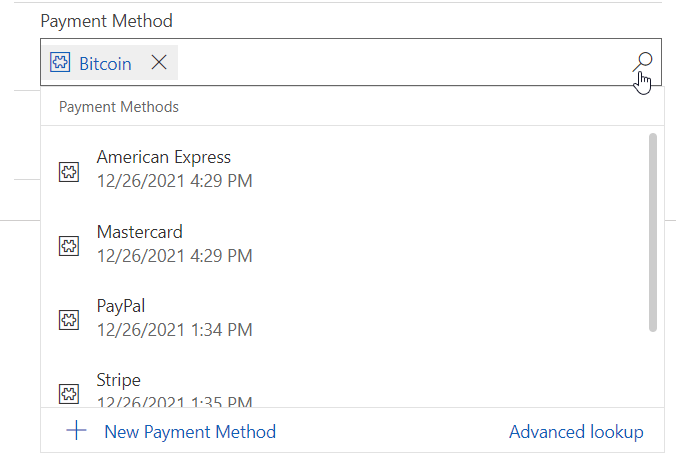
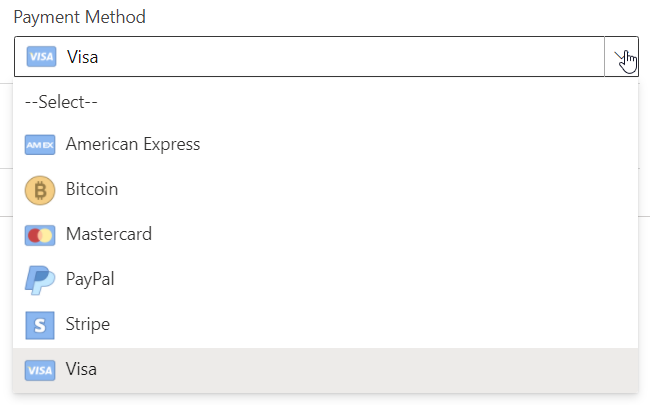
The control will turn the lookup selector…
into a dropdown list…
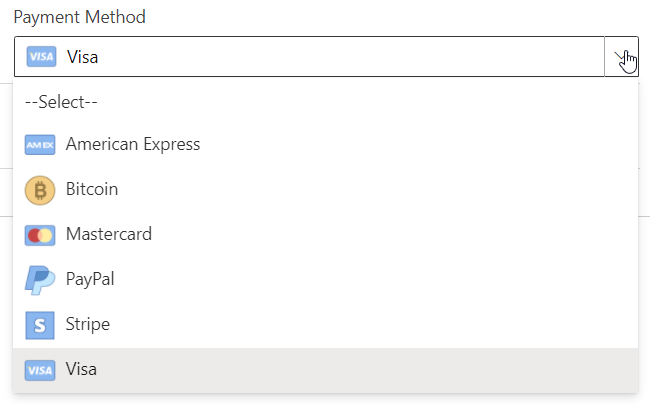
I will show how to setup the control and hightlight some of my findings in this post but you can download it straight up from my GitHub repo or find it exposed in the PCF Gallery .
🚨 UPDATE 2022-01-20 : please use v1.0.0.2 or above of the control, a bug 🐛 was found in earlier versions
Also, If you want to dig deeper on the Lookup field functionality for the PCF Framework, I highly recommend the blog posts and videos from Diana Birkelbach and Andrew Butenko .
- A first look to the Lookup PCF – Dianamics PCF Lady (wordpress.com)
- Lookup PCF – let’s dive deeper – Dianamics PCF Lady (wordpress.com)
- You asked, I built - Showing lookup field as an Optionset using PCF - YouTube
Use Case for a Lookup Dropdown
Whenever you want to display a list of values to users, the recommended and easiest way is definitely to create a Choice column (optionset) in your table, define the values and expose them on the form. But, for many reasons, the use of an optionset is not always the best solution.
Sometimes, a selected value comes with additional data that shapes the underlying business logic. For example, each payment method in the example above could come with its own % fee and some calculation might depend on it. So by using a Payment Method table instead of a choice column, this is very easy to model and consume in your application logic.

Also, super-users of your application might want more control over the values of a selection displayed on a form (add, modify or delete) without having to ask the development team to push a new version of the app in production. Again, this is easily achievable using a table.
That being said, a lookup column displayed as a dropdown can provide a more intuitive and fluid UX than the lookup selector, especialy when there are few and consistent choices in the list.
How to Set-up the control
After you install the LookupDropdown.PCF solution in your Dataverse environment, you will be able to bind the PCF control to any Lookup field exposed on a form.
First, open your form in classic mode. Unfortunately (at the time of writing) PCF controls configuration are still not possible using the ‘modern’ form editor 🤷♂️ .
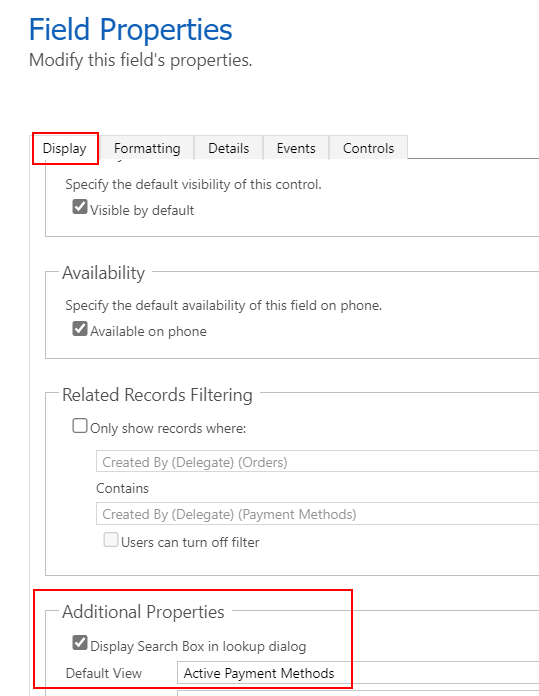
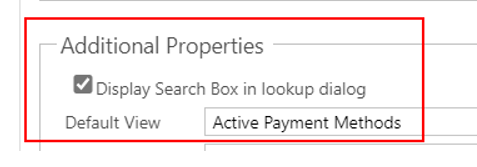
Now, when you configure a Lookup field, select the appropriate default view in the Display section. This view will be used by the PCF control to filter and order the values shown in the dropdown list.
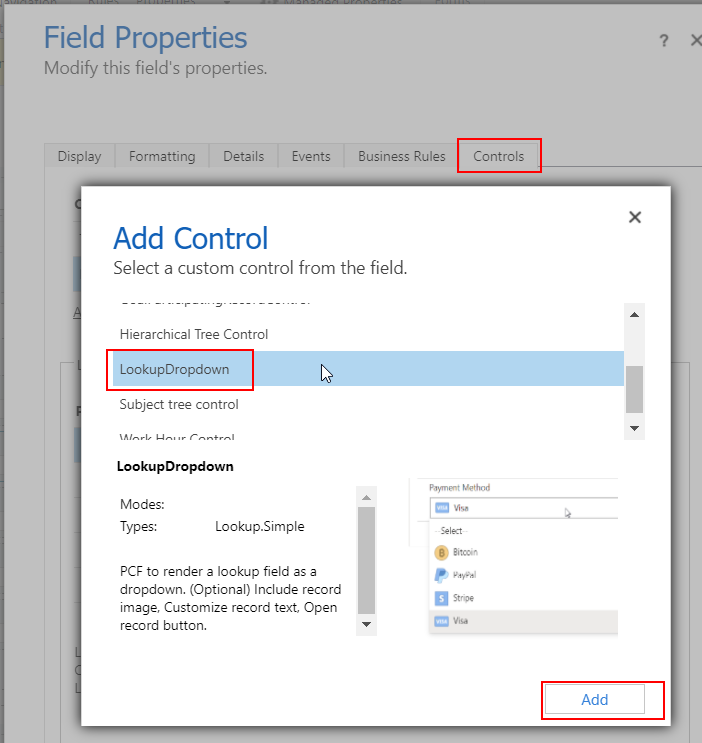
Then, head to the Controls section and select the LookupDropdown control
And add the desired configurations
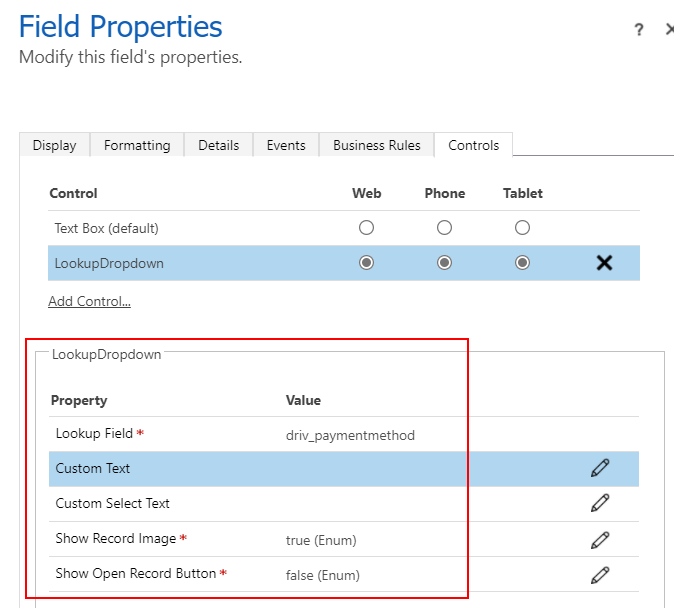
- Lookup Field : name of the bound lookup field ( will be populated automatically)
- Custom Text : (optional) put column names between curly braces. leave blank to use the ‘Primary Name’ column. more on this later
- Custom Select Text : (optional) custom text for select text (empty), default = ‘Select’
- Show Record Image : select ’true’ to show record images beside the display text
- Show Open Record Button : select ’true’ to show a button that will open the selected record Edit form
Thats all there is! You now have a way to render lookup fields as dropdown lists as seen in action below.
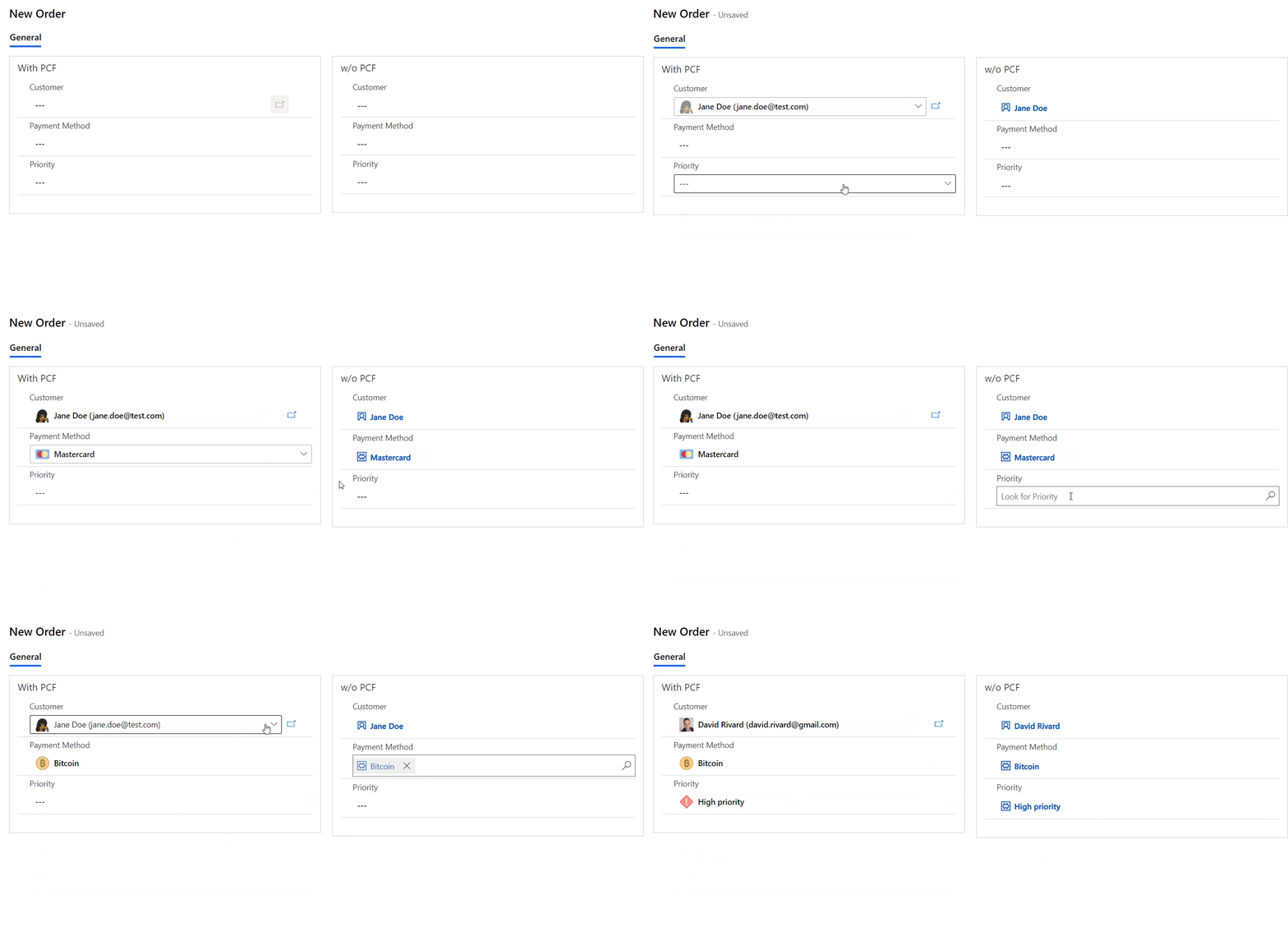
Now, let’s look more closely to some features of the control.
1️⃣ Show Record image 📷
Without a doubt, my favorite feature ✨ is the ability to show the record image ( Primary Image field) beside the record display text. I think that when used correctly, it adds meaning to the UI and provides a pleasant experience to end users. Here’s how to setup your tables to take advantage of it.
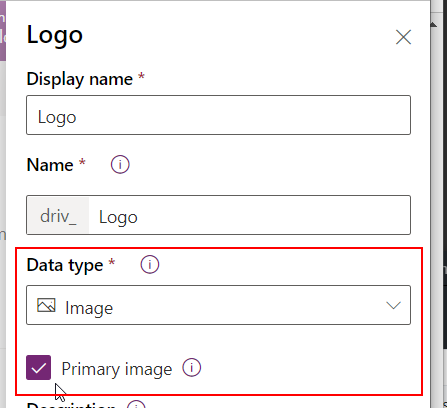
While some common tables like Account and Contact have a Primary Image column enabled by default, it’s quite easy to define on any table. Just create a column of type Image and check the Primary Image box.
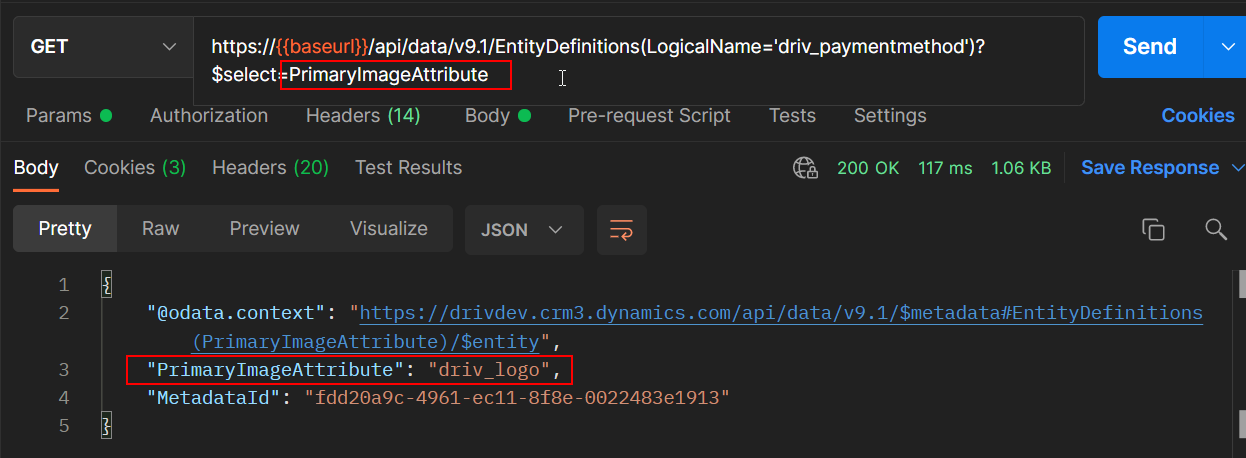
Once defined, the Primary Image attribute of a table is discoverable using a metadata query. This is used under the hood by the control to access image data.
To set an image on a specific record, open it in edit mode and click on the upper left corner of the form. This will open a dialog where you can upload the record specific image.
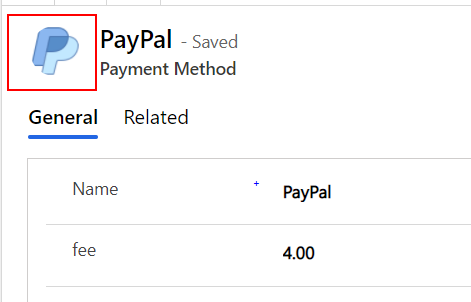
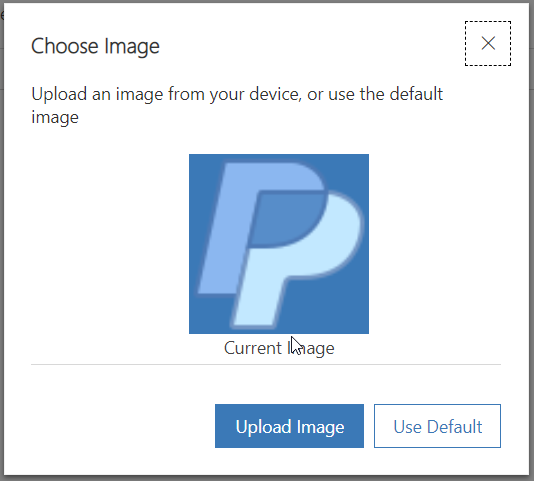
Once saved, the image data ( in base 64 format) can be retrieved from a web api call. This data will be used by the control when the ’ Show Image’ property is set to true to display record images.
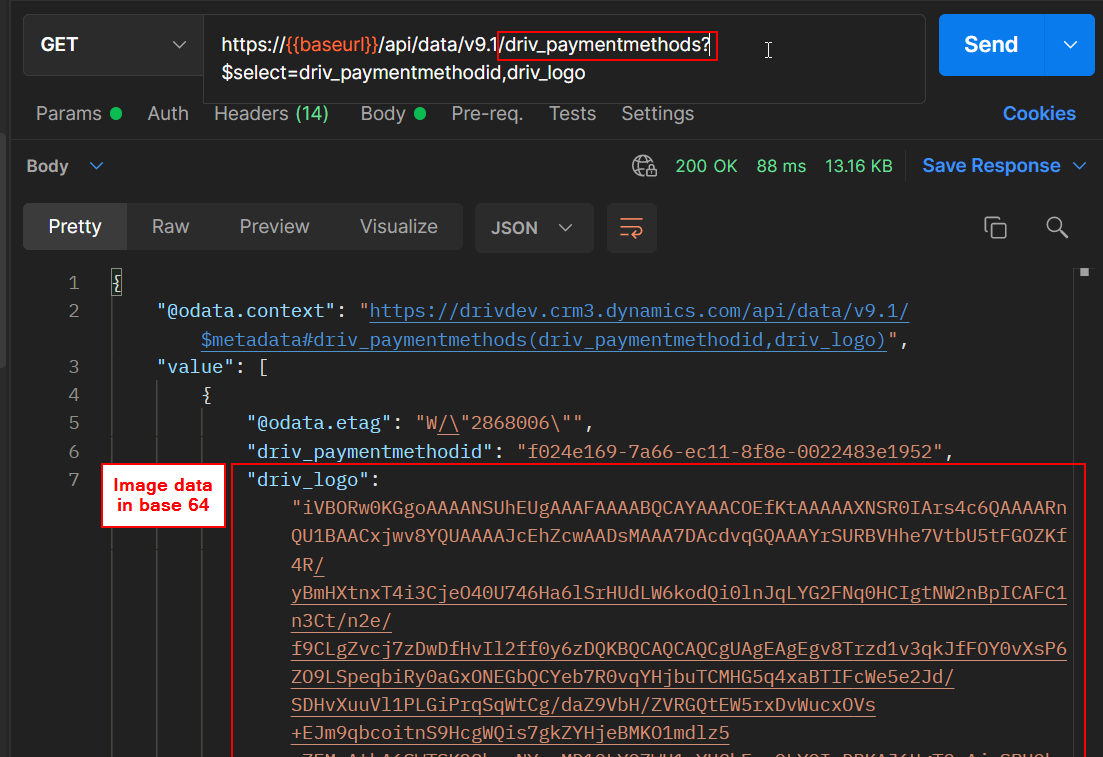
With the image data in base 64, you can create an adressable url that can be used within the PCF control code using this notation : url = ‘data:image/jpeg;base64,{base64image}’. For example in a FluentUI ImageIcon. ( see the code repo for the real implementation)
2️⃣ Customize display text
Another nice feature of the control is the ability to customize the display text of each record.
By default, the Primary Name column will be shown but this can be extended by suppling a value in the Custom Text property of the PCF control.
Provide the desired field(s) logical name(s) between curly braces {} and the record specific value will be replaced at run time. Any text that is not between culy braces will stand as a placeholder.
Piggy-backing on the previous example, setting a custom text like this :
{driv_name} (fee: {driv_fee}%)
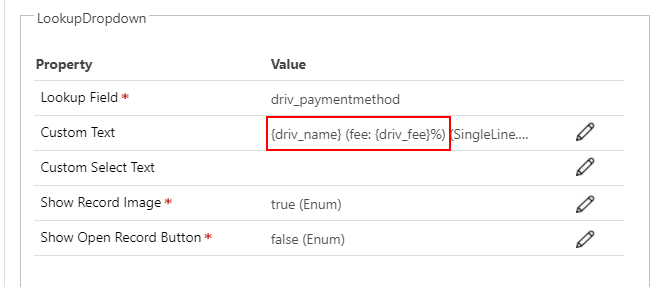
Will render the dropdown with these custom text values.

This can prove quite useful, especialy when the Primary Name column is not what you want to show up to users.
3️⃣ Fetch Default view records
One of the major roadblock I encountered was to find a way to dynamically fetch the records using the default view that is configured natively on the Lookup field properties of the form where the PCF control is used.
This ensures that the values of the dropdown list are filtered and ordered as intended by the developer of the application.
After numerous design tentatives and headaches, I finally found a solution that fitted my need.
- Retrieve the fetchxml of the default view
There is a property of a lookup field parameter in the ComponentFramework.Context called getViewId, this will give the GUID of the default view
Using the viewid, its now easy to retrieve the view fetchxml using a retrieveRecord from the savedquery table. Note that I also convert the fetchxml string to a Xml Document object using a DOMParser for further usage.
Note. this code as been altered for simplicity, look at the code repo for the real implementation
- Manipulate the fetchxml
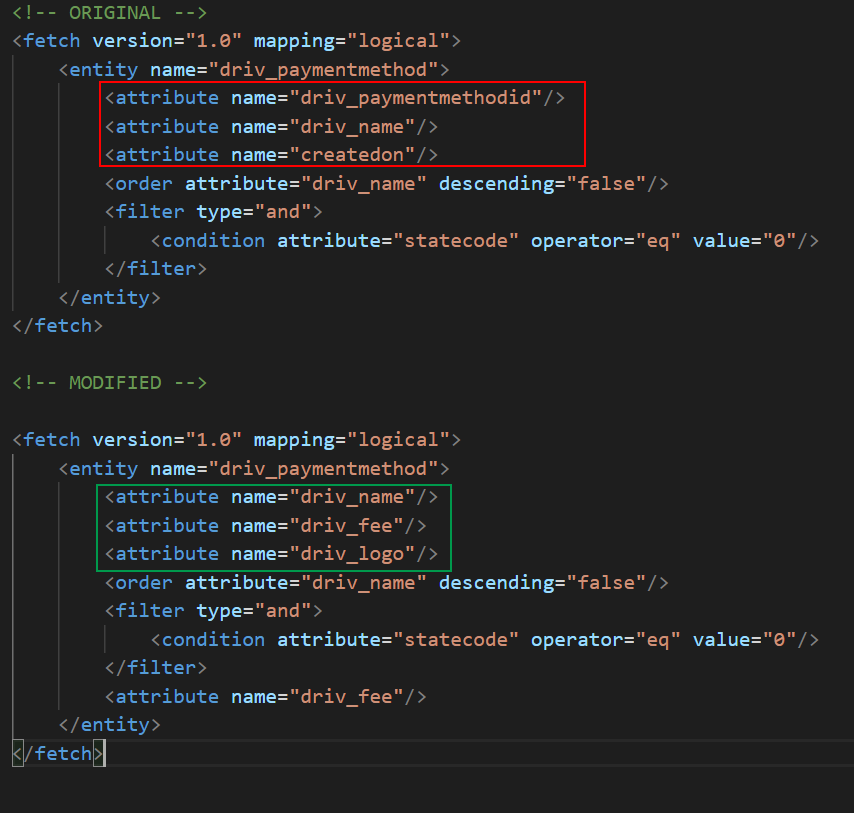
Now that we have the default view fetchxml, the goal is to modify the xml to include the fields (attributes) needed for the rendering of the dropdown list.
For example, we will want to add the Primary Image and other attributes required by the Custom Text property.
- Execute a WebApi request with the altered fetchxml
We now have everything in hand to make a RetrieveMultiple web api call on the main table using the modified fetchxml.
this.context.webAPI.retrieveMultipleRecords(this.lookupentityname, `?fetchXml=${fetchxmlstring}`)
A getLookupRecords method could look something like this
Takeaway
The addition of the Lookup datatype support in the PCF framework brings up a lot of new possibilities and I really learned a lot while developing the Lookup Dropdown control.
I think that the control fills a gap and I will certainly use it in my current projects to enhance the user experience. I’m curious to see how it will be used by others and dont hesitate to drop me a line in the project discussion if you have any comments, issues or improvement ideas.
Links
 Lookup Dropdown PCF
A control that renders a Lookup field as a Dropdown Honours the filtering and ordering of the default view selected on the field properties of the form Optional: Show record image (Primary Image) Optional: Customize record display text. Default = Primary Name column
pcf.gallery
Lookup Dropdown PCF
A control that renders a Lookup field as a Dropdown Honours the filtering and ordering of the default view selected on the field properties of the form Optional: Show record image (Primary Image) Optional: Customize record display text. Default = Primary Name column
pcf.gallery
 A first look to the Lookup PCF
According to the docs, we can start using the PCF Lookup.Simple. But there is a small bundling issue. After fixing that, the customizing possibilities lets me dream about amazing features. Dream wi…
dianabirkelbach.wordpress.com
A first look to the Lookup PCF
According to the docs, we can start using the PCF Lookup.Simple. But there is a small bundling issue. After fixing that, the customizing possibilities lets me dream about amazing features. Dream wi…
dianabirkelbach.wordpress.com
 Lookup PCF – let’s dive deeper
Lookup PCF …the second.. this time for real! I had a look how a Lookup PCF works, what I can do with it and what not, how to detect the settings made by the maker, and more…. Even if th…
dianabirkelbach.wordpress.com
Lookup PCF – let’s dive deeper
Lookup PCF …the second.. this time for real! I had a look how a Lookup PCF works, what I can do with it and what not, how to detect the settings made by the maker, and more…. Even if th…
dianabirkelbach.wordpress.comPhoto by Daniel Kux from Pexels